Everything an admin needs to install, set up, use, troubleshoot and uninstall Inventory & Warehouse Management by Piceci Services inside HubSpot.
01
About the app
Inventory & Warehouse Management is a HubSpot app built by Piceci Services. It lets you track inventory items, stock levels per warehouse, movements, transfers, reservations and consumption directly inside HubSpot, with a complete movement history.
Multiple warehouses or stock locations, with a consolidated total.
Stock In, Stock Out, Transfer and Adjustment operations.
Reservations for Work Orders, release and consumption.
Quantity on Hand, Reserved and Available kept separate.
Minimum stock, low-stock detection and full audit trail.
Requirements: an active HubSpot account, permission to install apps and to access the CRM objects and properties the app needs, and OAuth authorization during installation.
02
Install the app
1Click Install App.
2Sign in to HubSpot if prompted.
3Select the HubSpot account where you want to install the app.
4Review the permissions requested by the app.
5Click Connect app to authorize the installation.
6Wait for the installation to complete.
The app connects to your HubSpot account securely through OAuth.
03
Initial setup
After installation, the app automatically creates the HubSpot components the inventory system needs, so admins do not have to build every object and property by hand.
A main custom object (for example Work Order)
Warehouse
Inventory Items
Once installation is complete, check that the inventory records and app components are available in your HubSpot account.
04
Create your warehouses
Before recording movements, create one Warehouse for each location that needs its own stock quantity, for example Main Warehouse, Dubai Warehouse, Customer Warehouse, Service Warehouse or Spare Parts Warehouse.
1Open the Warehouse section.
2Select Create Warehouse.
3Enter the Warehouse name.
4Fill in any additional information required.
5Save the record.
Open the Warehouse record at any time to see its inventory and related movements.
05
Create inventory items
Create the products, spare parts, components, accessories or materials you want to manage.
1Open Inventory Items.
2Click Create.
3Enter the item information.
4Set the Minimum Stock value where required.
5Add supplier or other information where applicable.
6Save the Inventory Item.
The Inventory Item record shows Total Quantity on Hand, Reserved and Available Quantity, Minimum Stock, stock per warehouse and movement history, depending on your layout.
06
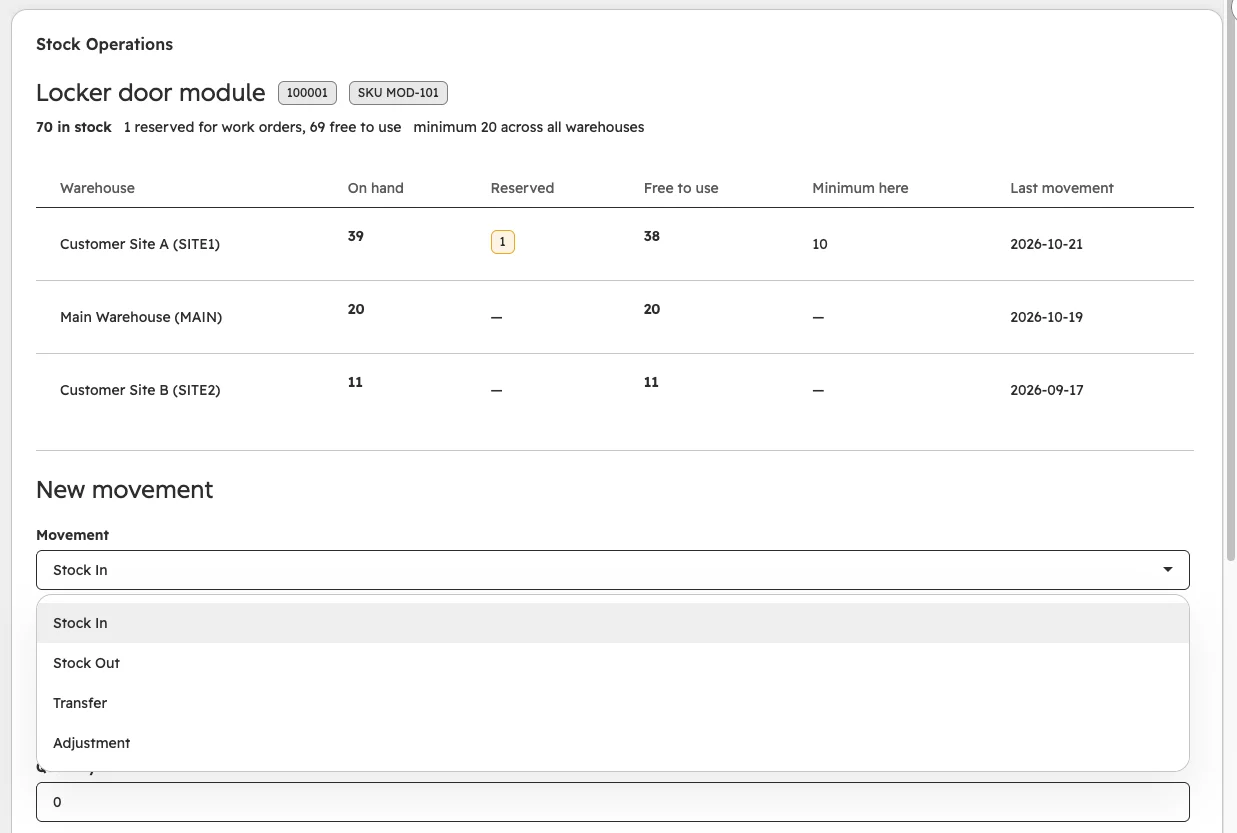
Add stock to a warehouse (Stock In)
1Open the Inventory Item.
2Click New Movement.
3Select Stock In.
4Select the Warehouse.
5Enter the quantity and the required transaction details.
6Confirm.
The Warehouse stock level increases.
Total Quantity on Hand increases.
A Stock Movement is recorded.
app.hubspot.com
Stock Operations card with the New movement form open: Stock In, Stock Out, Transfer, Adjustment
07
Remove stock (Stock Out)
1Open the Inventory Item.
2Click New Movement.
3Select Stock Out.
4Select the Warehouse.
5Enter the quantity and select a Customer where applicable.
6Confirm.
The Warehouse quantity and the total decrease. If the requested quantity is higher than the stock available for use, the app blocks the transaction.
08
Transfer stock between warehouses
1Open the Inventory Item.
2Select Transfer.
3Select the source Warehouse.
4Select the destination Warehouse.
5Enter the quantity.
6Confirm.
The source Warehouse decreases and the destination increases.
Total Quantity on Hand stays the same.
The transfer appears in Movement History.
09
Make an adjustment
Use Adjustment when the physical stock differs from the system, for example after a physical count, damaged or lost goods, or a data-entry error.
1Open the Inventory Item.
2Select Adjustment.
3Select the Warehouse.
4Choose Increase or Decrease.
5Enter the quantity and the reason.
6Confirm.
Only the selected Warehouse is updated, and the adjustment appears in Movement History.
10
View stock levels
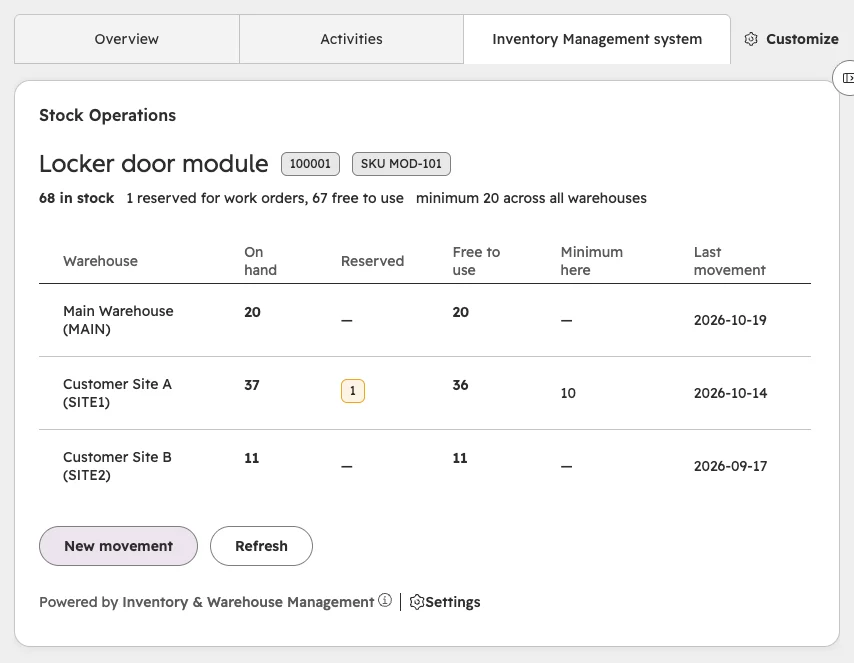
Open an Inventory Item to see how its stock is distributed across warehouses. For each Warehouse you can see:
Quantity on Hand
Reserved Quantity
Available Quantity
Minimum Stock information
app.hubspot.com
Stock Operations card on an Inventory Item: on hand, reserved, free to use and minimum per warehouse
11
Reserve stock for a Work Order
Set stock aside for a job without physically removing it from the warehouse.
1Open the Work Order.
2Go to the Stock Management section.
3Select Reserve.
4Select the Inventory Item and the Warehouse.
5Enter the quantity.
6Confirm.
Reserved Quantity goes up and Available Quantity goes down. Quantity on Hand does not change until the stock is consumed.
12
Release reserved stock
1Open the Work Order.
2Go to Stock Management.
3Select Release.
4Select the reserved stock.
5Enter the quantity to release.
6Confirm.
Released stock becomes available again. You cannot release more than was reserved.
13
Consume stock from a Work Order
1Open the Work Order.
2Go to Stock Management.
3Select Consume.
4Select the Inventory Item and the Warehouse.
5Enter the quantity.
6Choose whether to consume Available Stock or Stock Reserved for this Work Order.
7Confirm.
Physical quantity decreases.
Available and reserved quantities are updated as needed.
A Stock Movement is recorded and linked to the Work Order.
14
Set minimum stock
Set the minimum quantity on the Inventory Item or on the relevant stock level. When available stock falls below it, the item is flagged as low stock.
Example: 20 on hand, 18 reserved, 2 available, minimum 5. The item is low stock because only 2 units can actually be used.
15
Movement history
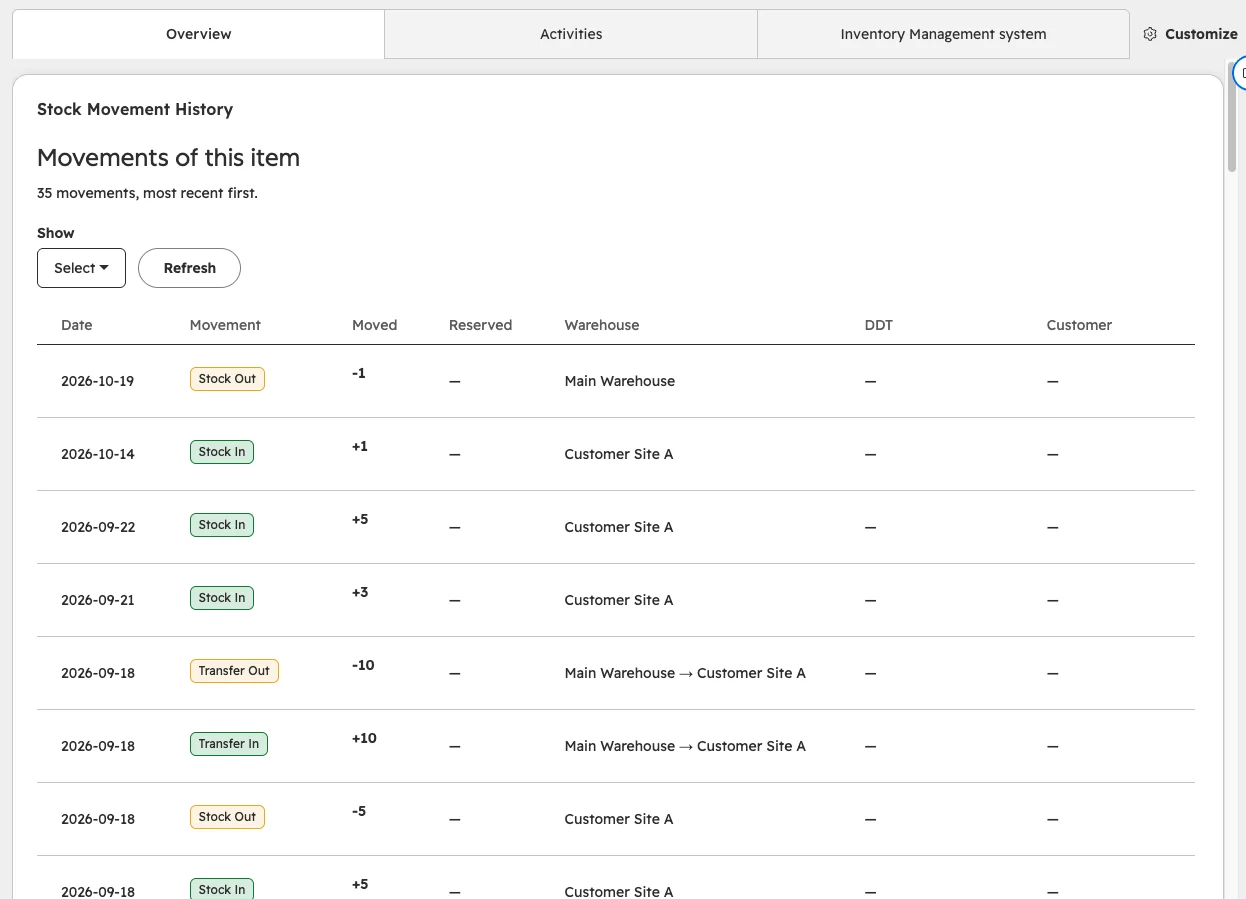
Every operation creates a movement record, giving you a full audit trail. Depending on the type, each movement shows:
Movement type and Inventory Item
Quantity moved and quantity committed
Warehouse, or source and destination Warehouse
Date, Customer and Work Order
app.hubspot.com
Stock Movement History: every movement of the item, most recent first
16
Warehouse inventory and reporting
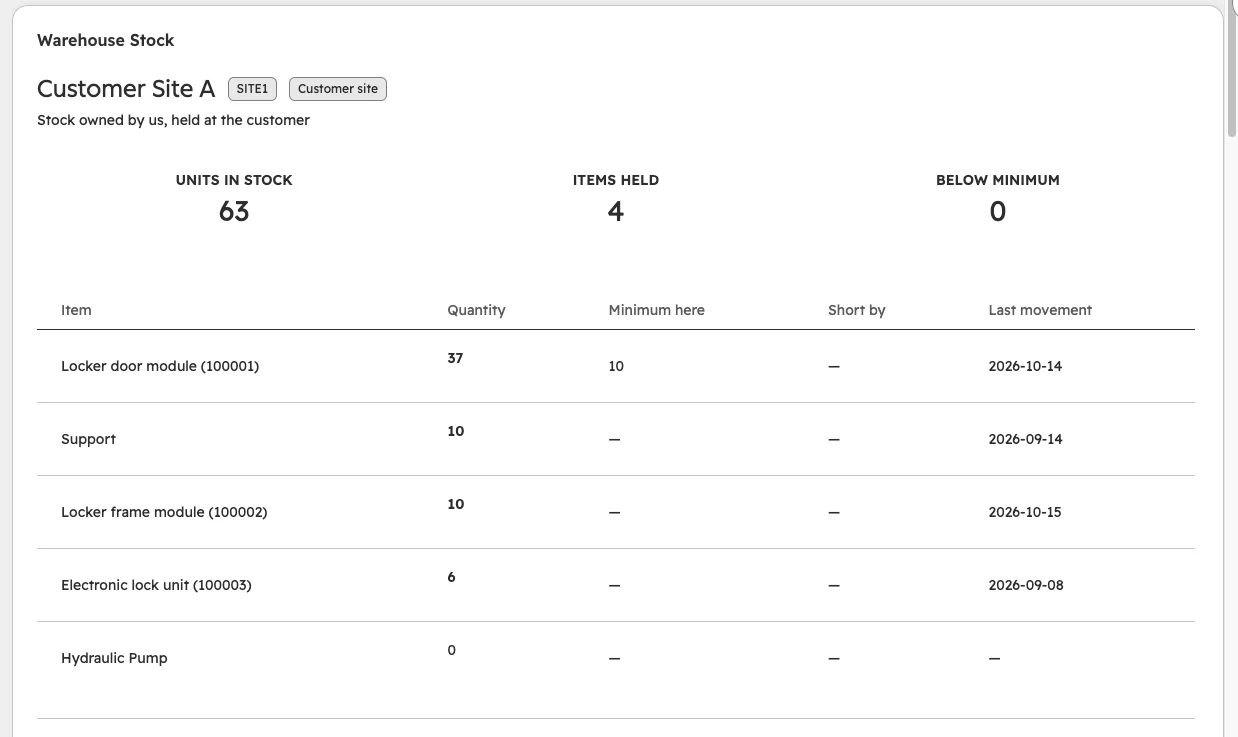
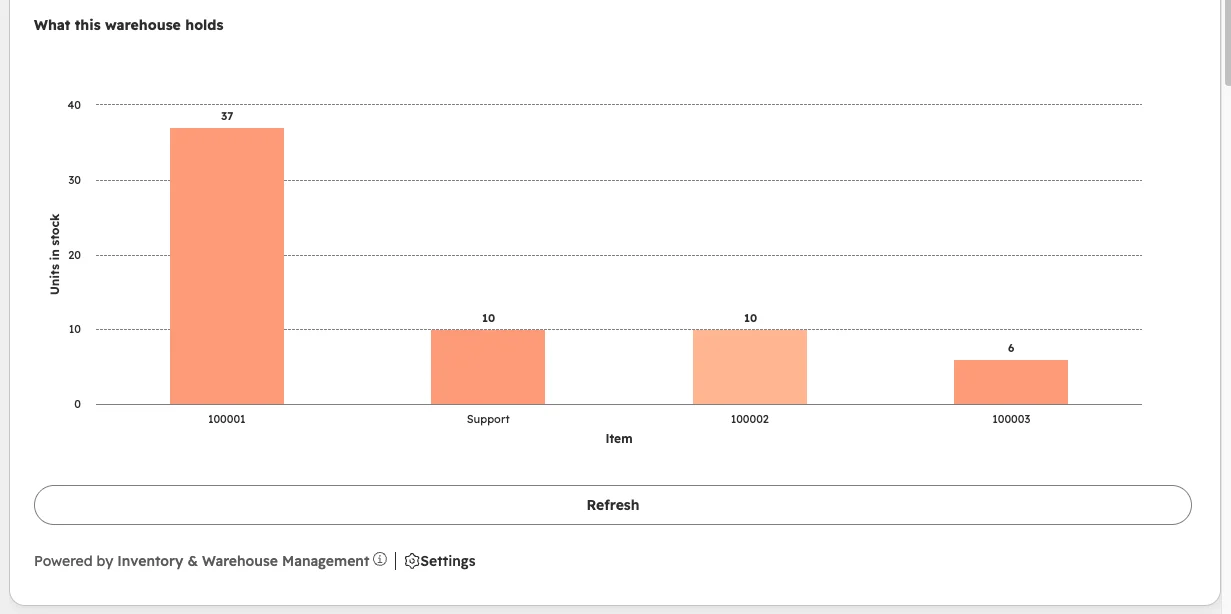
Open a Warehouse record to see the items stored there, current, reserved and available quantities and recent movements. Use the inventory views to monitor:
Stock by item and by warehouse
Available and reserved stock
Low-stock items and shortfalls
Recent movements and movements by type
app.hubspot.com
Warehouse Stock card: units in stock, items held, items below minimum
app.hubspot.com
What this warehouse holds: units in stock per item
17
Troubleshooting
The inventory quantity is wrong
Review the item's Movement History for Stock In, Stock Out, Transfers, Adjustments, Consumption and Reservations. Remember that a reservation does not remove stock physically, it only reduces what is available.
I cannot stock out the requested quantity
Check the Available Quantity of the selected Warehouse. Part of the stock may already be reserved for a Work Order, and the app does not let other transactions use it.
My total did not change after a transfer
This is expected. A transfer moves stock between warehouses without adding or removing any. Example: Warehouse A 10 → 5, Warehouse B 5 → 10, total still 15.
Reserved Quantity is different from Quantity on Hand
This is expected. Quantity on Hand is the physical stock, Reserved is the part already committed, Available is what is left for other operations.
An item shows low stock even though there is physical stock
Check the Reserved Quantity. Low stock is calculated on Available Quantity, because reserved stock cannot be used for other operations.
A stock movement is missing
Refresh the record, review Movement History and check that the transaction was completed. If the problem continues, contact Piceci Services support.
Warehouse quantities do not match the total
Review the item's stock levels: the total should equal the sum of all warehouses. If it still does not match, check Movement History or contact support.
18
Disconnect or uninstall the app
1Open your HubSpot account.
2Go to Settings.
3Open Integrations → Connected Apps.
4Find Inventory & Warehouse Management.
5Open the app actions.
6Select Uninstall.
7Confirm.
After uninstalling, the app no longer has access to your HubSpot account.
19
Data after uninstalling
When the app is uninstalled, it loses access to the connected HubSpot account. The app may use backend services for inventory processing, stock snapshots, historical reporting, backups or exports: data handled outside HubSpot follows the Piceci Services data retention and deletion policy.
20
Reinstall the app
1Open the Inventory & Warehouse Management installation page.
2Click Install App.
3Select your HubSpot account.
4Review the requested permissions.
5Authorize the app.
Depending on your previous configuration, extra setup or data synchronization may be needed after reinstalling.
21
Support
If you need help installing, configuring or using Inventory & Warehouse Management, contact the Piceci Services support team. Whenever possible, include:
Your HubSpot Portal ID
The Inventory Item or Warehouse affected
A short description of the issue and the action you were performing