Everything an admin needs to install, connect, configure, use, troubleshoot and uninstall Current Time Card by Piceci Services inside HubSpot.
01
About Current Time Card
Current Time Card (also referred to as Timezone Sync) is a HubSpot CRM card that shows the current local time of any Contact or Company directly on the record. It reads the location information already stored in HubSpot, resolves the correct timezone and displays a live clock, the timezone name and an indication of whether it is currently a good time to call. It is read-only: it does not create, edit or delete CRM data.
Works on Contact and Company records.
Live local time, timezone name and time difference.
"Good time to call" indicator based on local working hours.
No per-user configuration: installed once at portal level by an admin.
02
Install the app
1Click Install App on the HubSpot Marketplace listing (or on the install link provided by Piceci Services).
2Sign in to your HubSpot account if prompted.
3Select the HubSpot account where you want to install Current Time Card.
4Review the permissions requested by the app.
5Click Connect app to complete the installation.
You need Super Admin permissions (or App Marketplace install permissions) in HubSpot to install a connected app.
03
Connect your HubSpot account
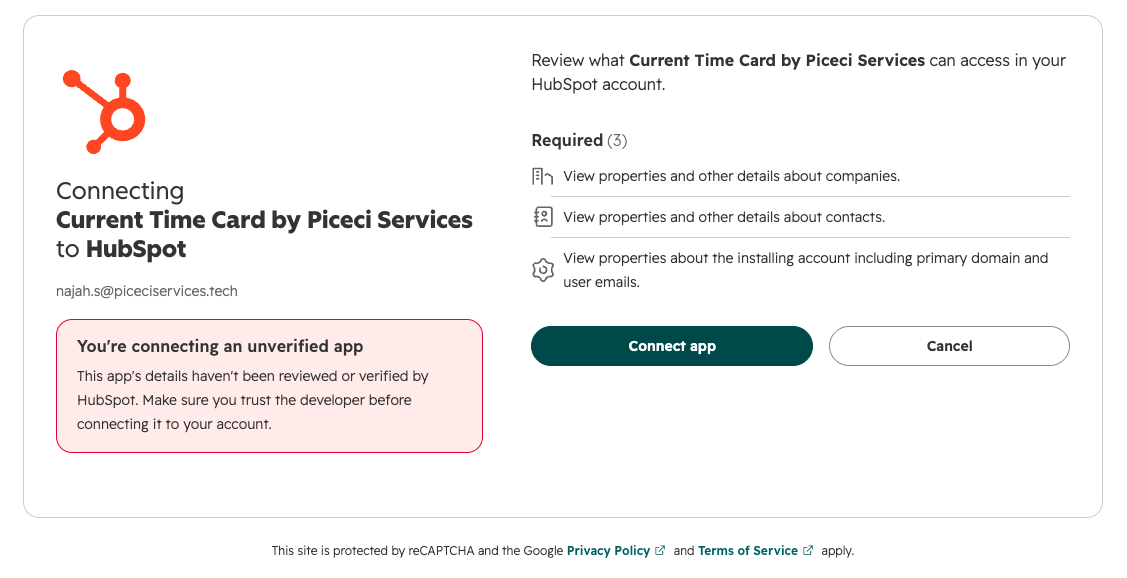
After choosing the account, HubSpot shows the authorization screen listing exactly what the app can access. Current Time Card requests three read-only scopes: view properties and other details about companies, view properties and other details about contacts, and view properties about the installing account (primary domain and user emails). Click Connect app to authorize.
app.hubspot.com
HubSpot account selection and the permissions/scopes approval screen. Click "Connect app" to authorize the installation.
04
Configure the app
After installation, an admin adds the card to the record layout so your team can see it.
1In HubSpot, go to Settings.
2Navigate to the record customization settings (Objects → Contacts / Companies → Record customization).
3Select the relevant object, such as Contacts or Companies.
4Edit the record layout (default view or a specific team view).
5Add Current Time Card to the right-hand sidebar section of the CRM record.
6Save your changes.
Repeat the steps for both Contacts and Companies if you want the card on both object types. The card itself has a Settings link (gear icon) where available options such as time format can be adjusted.
app.hubspot.com
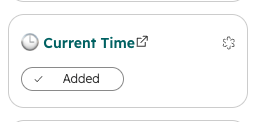
The Current Time card marked as "Added" in the HubSpot record customization editor.
05
Use the app
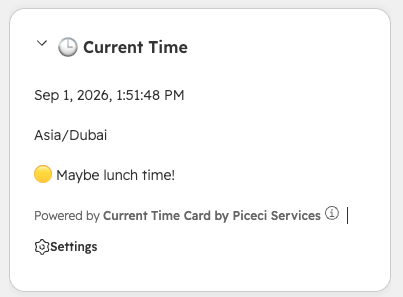
Open any supported Contact or Company record in HubSpot. The Current Time card appears in the right-hand sidebar and shows local-time information without leaving the CRM.
Current local date and time, updated live.
The resolved timezone (for example Asia/Dubai).
The time difference compared with your own time.
Whether it is currently a good moment to call.
app.hubspot.com
The card on a CRM record: local time, timezone and a plain-language calling indicator.
06
How the timezone is determined
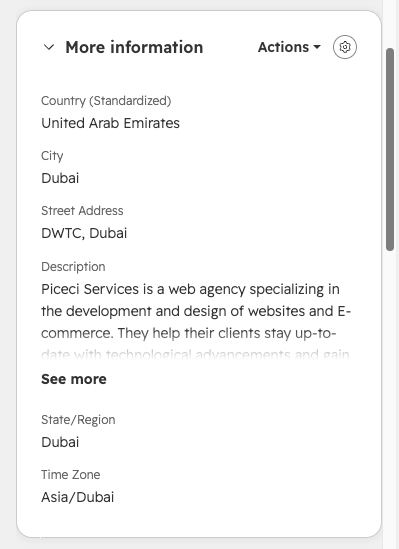
Current Time Card uses the location information available on the HubSpot CRM record to determine the timezone. For best results, make sure the Contact or Company record contains location information — at least one of the fields below is enough.
Time Zone
Country / Region
State / Region
City
International phone number (with country prefix)
app.hubspot.com
The location properties on the record that the card reads to resolve the timezone.
07
Troubleshooting
The Current Time card is not visible
First confirm that Current Time Card is installed in the correct HubSpot account. If the app is installed but the card is not visible, open the record customization settings and make sure the card has been added to the relevant Contact or Company record layout, then reload the record page.
The timezone or local time is unavailable
Check that the CRM record contains the location information the card needs (Time Zone, Country, State, City or an international phone number). If it is missing or incomplete, the app cannot determine the timezone.
The displayed timezone appears incorrect
Review the location information stored on the record and correct it if necessary, then refresh the CRM record. Filling in State helps a lot for multi-timezone countries such as the US, Russia, Brazil and Australia, and phone numbers should use the international format (e.g. +971…).
"Good time to call" seems off
The indicator uses 09:00–18:00 local time, Monday to Friday, by default. Contact support if you need custom working hours per team or portal.
Still having problems?
Contact our support team and include your HubSpot account/portal ID, the CRM object affected, a short description of the issue and a screenshot if possible.
08
Disconnect or uninstall the app
1Open your HubSpot account.
2Go to Settings.
3Navigate to Integrations → Connected Apps.
4Find Current Time Card by Piceci Services.
5Open the app actions/options menu.
6Select Uninstall Current Time Card by Piceci Services.
7Confirm the uninstall action.
After uninstalling, Current Time Card can no longer provide its functionality inside your HubSpot account and the card stops rendering on records.
app.hubspot.com
The connected-app page in HubSpot, with the Uninstall action under the Actions menu.
09
What happens to your data after uninstalling
Current Time Card does not retain your HubSpot CRM data after the integration is uninstalled. The app reads location properties on demand to render the card and does not store a copy of your CRM records.
Access revoked: the app immediately loses access to your HubSpot account.
Nothing retained: no CRM data is kept by Piceci Services after uninstall; any cached technical data (such as the access token and portal identifier needed to serve the card) is deleted.
What stops working: the Current Time card no longer appears on Contact and Company records and local-time information is no longer displayed.
Your HubSpot data is untouched: because the app is read-only, no properties, records or settings are modified or removed from your portal.
10
Reinstalling the app
If you uninstall Current Time Card and later want to use it again, simply reinstall the application and authorize access to your HubSpot account again. You may also need to add the card back to the appropriate CRM record layout.
11
Support
If you need assistance installing, configuring or using Current Time Card, contact the Piceci Services support team. Please include your HubSpot Portal ID and a short description of the issue whenever possible.